Almost ready to go
Loading...
Let’s make something.

YOUR NEXT IDEA STARTS HERE

What will you create?

Choose a workspace. Make it yours.

Your idea can start anywhere. Your brand comes with you.

Skip to content
Text to video and image to video

AI Video Generator
from Text and Images

Turn a text prompt or reference photo into an AI video. Create clips for social posts, product ideas, or your website, with optional brand context.

What would you like to create?

Add your prompt and reference photos in the video creator.

Create your video
Text promptsReference photosBrand context · optional

Free credits available. See the credit cost before you generate.

Watch video examples
Find your starting point

Create AI videos from text, photos, and product ideas

Choose a workflow for your idea. Review its inputs and settings before you generate.

Text to video: morning at the cafe

AI-generated output · 8 seconds · landscape

Text to video: morning at the cafe — frame from the generated output Watch video in Studio ↗
View the text prompt
A cinematic close-up of a ceramic coffee cup and a fresh croissant on a wooden cafe table beside a large window. Warm morning sunlight, gentle steam rising from the coffee, soft shadows and natural textures. The camera slowly pushes in throughout the shot, with the cup and croissant remaining stable in the scene. Realistic food photography, shallow depth of field. No people, no text, no logos, no cuts.
Create your own video →

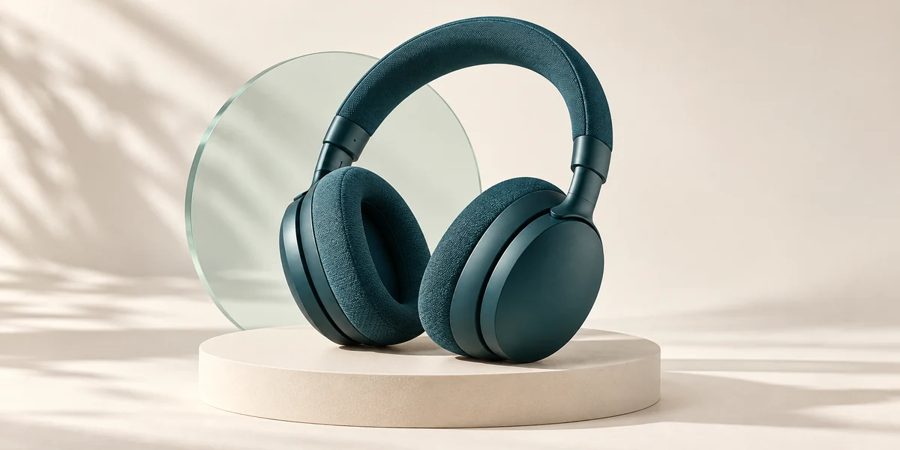
Image to video: headphones in motion

AI-generated output · 8 seconds · portrait

Image to video: headphones in motion — frame from the generated output Watch video in Studio ↗
View the reference image and prompt
Dark teal headphones on a cream pedestal: the reference image uploaded for this video
Reference image supplied to the creator
Use the dark teal over-ear headphones in the reference image as the subject. Keep their shape and color consistent. Create a vertical product video with the headphones on a cream circular pedestal, a subtle slow camera arc from left to right, soft morning window light and gentle moving shadows. Keep the full headphones visible in the frame. Clean premium studio style. No people, no text, no added logos, no cuts.
Create your own video →
How it works

How to create an AI video

  1. Describe your video

    Write a prompt and, if useful, add reference photos of your subject, product, or visual style.

  2. Choose your settings

    Select the available format, duration, and resolution. Add brand context if you want to use it.

  3. Review the credits and generate

    Check the displayed credit cost, then choose whether to generate your video.

Open video creator →
Optional · Brand Profile

Bring your brand into your videos

Add your Brand Profile when you want to use brand context in your video workflow. You can also create a video without one.

Add a character reference

Use a character reference when it helps communicate your idea.

Add your logo as a reference

In Pro Studio, choose a model that supports reference images and upload your logo.

Add brand context in the creator →
Pro Studio

Explore another way to create

Choose a workflow for the video you want to make. Review its controls, available models and credit cost in Studio.

Explore Pro Studio →
A little more clarity

Questions about AI video

Find the right starting point for your next idea.

Visit the help center →
Can I use Zoviz as a free AI video generator?

Yes. You can use free credits for eligible video generation. You can also earn more credits by completing available tasks in the Customer Club. The credits needed depend on the video settings, and the cost is shown before you generate.

What is the difference between text-to-video and image-to-video?

Text-to-video starts with a written description. Image-to-video adds a reference image to guide the result. Describe the scene or movement you want, then review the available settings.

Can I start with a photo?

Yes. In Pro Studio, choose a video model that supports reference images. Upload your photo and describe the movement you want to see in the video.

How many credits does a video use?

The credit cost is displayed before generation and changes with your selected settings. Check the creator for the current cost.

Do I need a brand or logo?

No. You can create a video without a brand or logo. Add brand context or a reference image when it is useful for your project.

What video settings can I choose?

Choose a video model in Pro Studio to see which durations and resolutions it supports. Select your settings to see the credit cost before you generate the video.

Do I need video editing experience?

You can start by writing a prompt and choosing your settings. Other video workflows may offer additional controls.

Explore available Customer Club tasks →
Your next video

Turn your next idea into an AI video

Start with a prompt or photo, choose your settings, and review the credit cost.

Create your video →