
Best Free Tools to Remove Unwanted Objects from Photos

You finally get the shot. Then you notice the trash can, the stranger walking through the frame, or the cable running across your product photo. Ten years ago that meant Photoshop's clone stamp and twenty minutes of careful blending. Now you just brush over the object and an AI fills in what should be there.
We tested 17 of the tools people actually use for this, from free browser apps to the phone in your pocket, and here's what's worth your time.
Quick Takeaways
- Zoviz and Cleanup.pictures are the two genuinely free, no-signup browser tools. Most other "free" options cap resolution or add a watermark somewhere.
- AI object removal (inpainting) handles plain backgrounds well and struggles on patterned fabric, water, and crowds. That's a limitation of the technology, not the tool.
- If you're on an iPhone with iOS 18 or later, Apple's built-in Clean Up tool handles small removals with no app download.
- For pixel-perfect control on a tricky image, Photoshop's Generative Remove still beats every free web tool we tried.
- Selling products online? Prioritize tools built for product shots, like Zoviz, PhotoRoom, or Pixelcut, over general selfie editors.
Quick comparison: Free object removal tools
| Tool | Best for | Free tier | Paid plans |
|---|---|---|---|
| Zoviz | Product photos, e-commerce | Unlimited, no signup, no watermark | Pro plans for batch work |
| Cleanup.pictures | Fast one-off browser fixes | Unlimited, capped at 720p | From $3/month |
| Photoshop | Pro-level, pixel-perfect control | Free mobile app, limited | Creative Cloud from $22.99/month |
| TouchRetouch | Mobile, lines and small objects | One free export per day | $3.99 one-time |
| Snapseed | Free mobile healing tool | Completely free | None |
| PhotoRoom | Marketplace sellers | Basic removal, watermarked | From $4.99/month |
| Fotor | Beginners | One free removal per day | Subscription tiers available |
| Picsart | Creators who also want filters | Free with ads and watermark | $11.99/month |
| Inpaint | Old photos, minor cleanup | Limited web version | One-time desktop purchase |
| Pixlr | All-in-one browser editing | Free with basic tools | Premium tiers available |
| Canva Magic Eraser | Design workflows | Not available | Pro plans only |
| PicWish | No-signup web removal | Unlimited, free | Optional paid upgrades |
| Pixelcut Magic Eraser | Product and listing photos | Unlimited, free | Paid tiers for extras |
| AirBrush | Selfies and portraits | Basic tools free | VIP from $6.99/month |
1. Zoviz Photo Object Remover

Zoviz is what we'd point a small business owner to first. Upload an image, brush over whatever you want gone, and the AI fills the area in a few seconds. It's free with no signup, no watermark, and no resolution cap, which puts it ahead of most tools on this list before you even factor in quality. Uploads are encrypted and deleted automatically after processing, so there's no lingering privacy question either.
- Best for: product photos, real estate shots, and general cleanup where you don't want to create an account
- Honest trade-off: it's a browser tool, so there's no offline mode
- Free tier: unlimited, no watermark
- Paid plans: available for teams that need batch processing
2. Cleanup.pictures
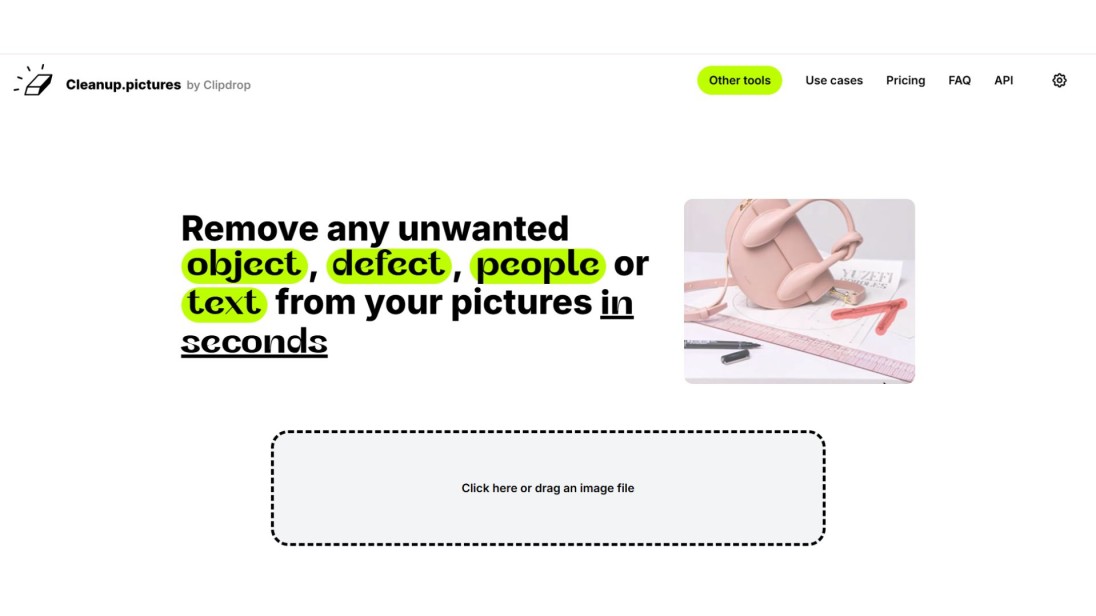
Cleanup.pictures is the simplest tool here. No account, no download, just upload and brush. It handles small objects and power lines well. Where it struggles is anything large or set against a complex background, you'll start to see smudging.
- Best for: quick, one-off fixes on social photos
- Honest trade-off: free exports cap at 720p, so it's not built for print or high-res work
- Free tier: unlimited at standard resolution
- Paid plans: start around $3/month for HD exports
3. Adobe Photoshop (Generative Remove)

Photoshop is still the standard when the removal has to be flawless. Generative Remove combines the old content-aware fill with newer generative AI, and it handles complex scenes, reflections, overlapping objects, tricky lighting, better than any free tool we tested. The catch is obvious: it's a subscription, and there's a learning curve if you've never touched layers or masks.
- Best for: professional retouching and complex scenes free tools can't handle
- Honest trade-off: expensive relative to everything else on this list, and it takes time to learn
- Free tier: a limited free mobile app
- Paid plans: Creative Cloud starts at $22.99/month
Prepping product photos?
If you're cleaning up images for a store listing, background removal usually comes next. Our best background remover tools roundup breaks down which free tools actually hold up on hair, shadows, and product edges.
4. TouchRetouch

TouchRetouch is built almost entirely around cleanup: objects, power lines, blemishes, mesh. Its dedicated line-removal mode is genuinely better at cables and fences than any general-purpose tool we tried. It's mobile-only and the free version limits you to one export a day.
- Best for: travel and street photographers dealing with wires, signs, and strangers in frame
- Honest trade-off: mobile-only, no desktop or browser version
- Free tier: one export per day
- Paid plans: $3.99 one-time purchase, no subscription
5. Snapseed

Snapseed isn't AI-driven the way the others are. Its Healing tool is a manual brush that you control, which actually makes it more predictable on simple backgrounds like skies and walls. It's also completely free with no watermark, which is rare.
- Best for: mobile users who want manual control and zero cost
- Honest trade-off: not AI-powered, so large or complex removals take more effort
- Free tier: completely free
- Paid plans: none
6. Inpaint
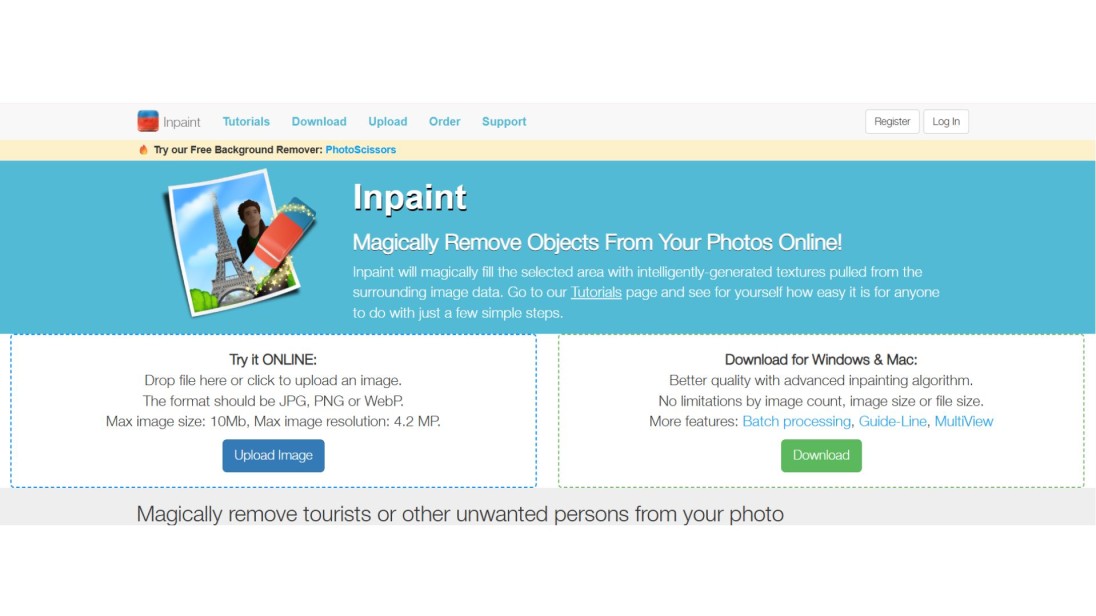
Inpaint has been around since before the current AI wave, and it shows: it uses a smart-fill approach that's a little more manual than pure AI tools. That makes it a reasonable choice for restoring old photos where you want more predictable results.
- Best for: restoring older photos and minor touch-ups
- Honest trade-off: the free web version is limited; full features need the desktop app
- Free tier: limited web version
- Paid plans: one-time desktop purchase
7. Fotor
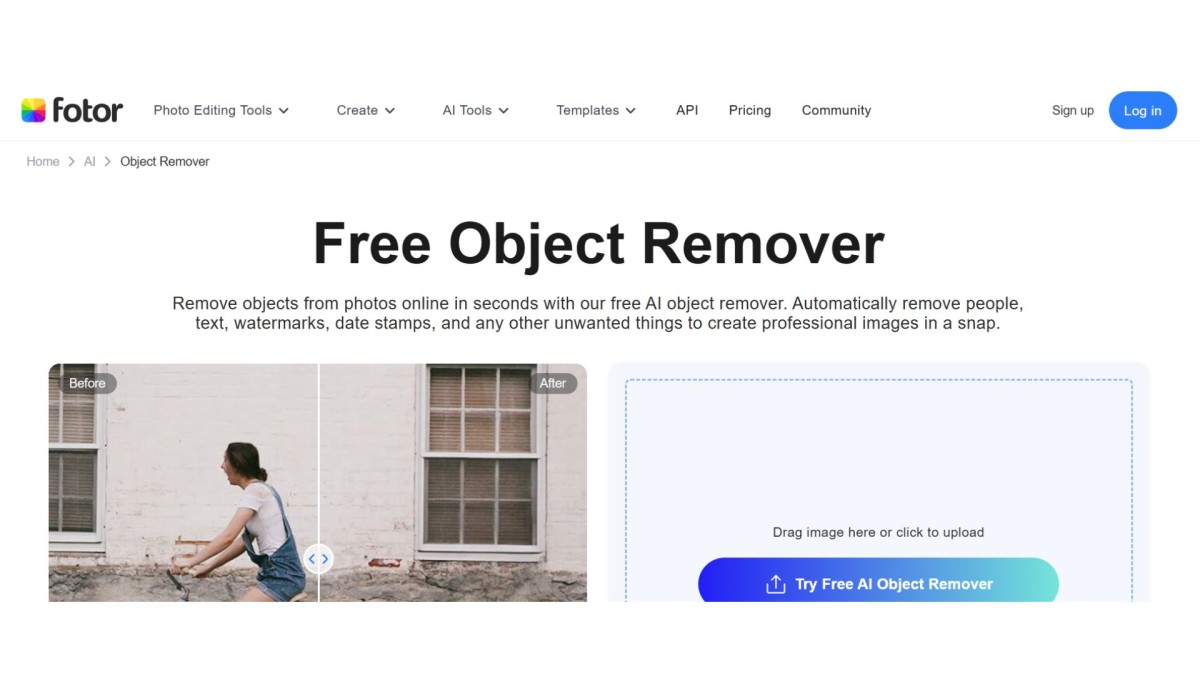
Fotor keeps things simple with a brush tool and natural-looking blending. It's a solid pick for someone who's never used an object remover before.
- Best for: first-time users who want a guided, no-frills experience
- Honest trade-off: the free plan only allows one removal per day
- Free tier: one removal per day
- Paid plans: subscription tiers for unlimited use
Want to go deeper?
If object removal is just one step in your workflow, our AI image upscaler tools comparison covers the tools worth pairing it with once your photo is clean and you need it sharper or larger.
8. SnapEdit App
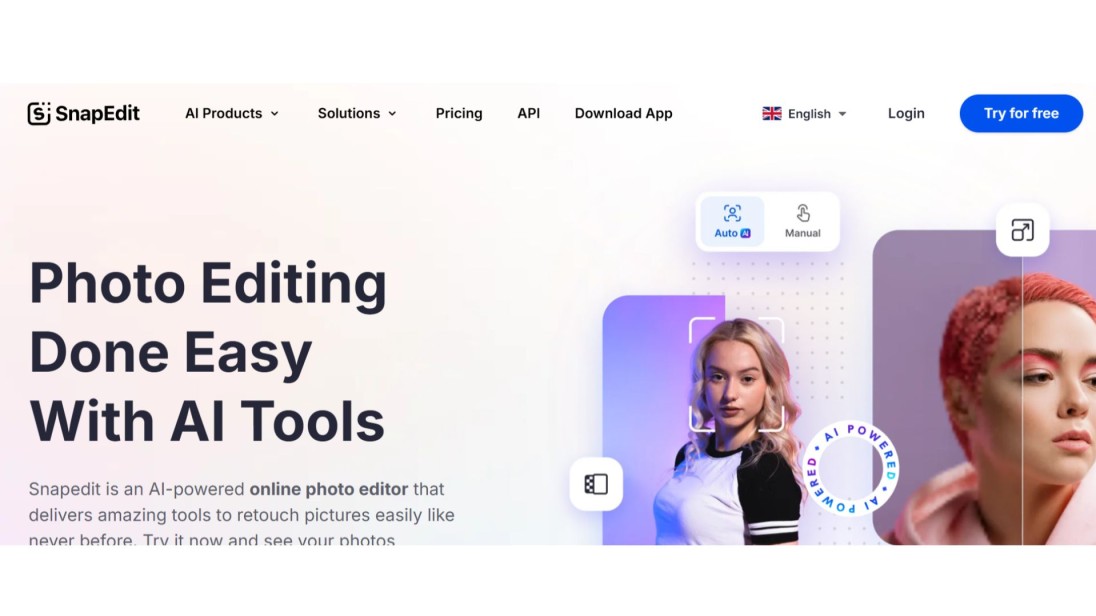
SnapEdit suits people who want to edit from their phone without thinking too hard about it. Highlight the object, tap, done, and it hands you a clean HD download with no signup wall in front of it. That single-tap simplicity is why it's popular with social media users who just want a fast fix before posting.
- Best for: quick phone-based edits before posting to social media
- Honest trade-off: the free tier caps you at 25 credits a day; heavier daily use means upgrading
- Free tier: 25 credits per day, HD downloads, no signup
- Paid plans: $12/month billed yearly removes the watermark and adds batch processing
9. Pixlr Object Remover
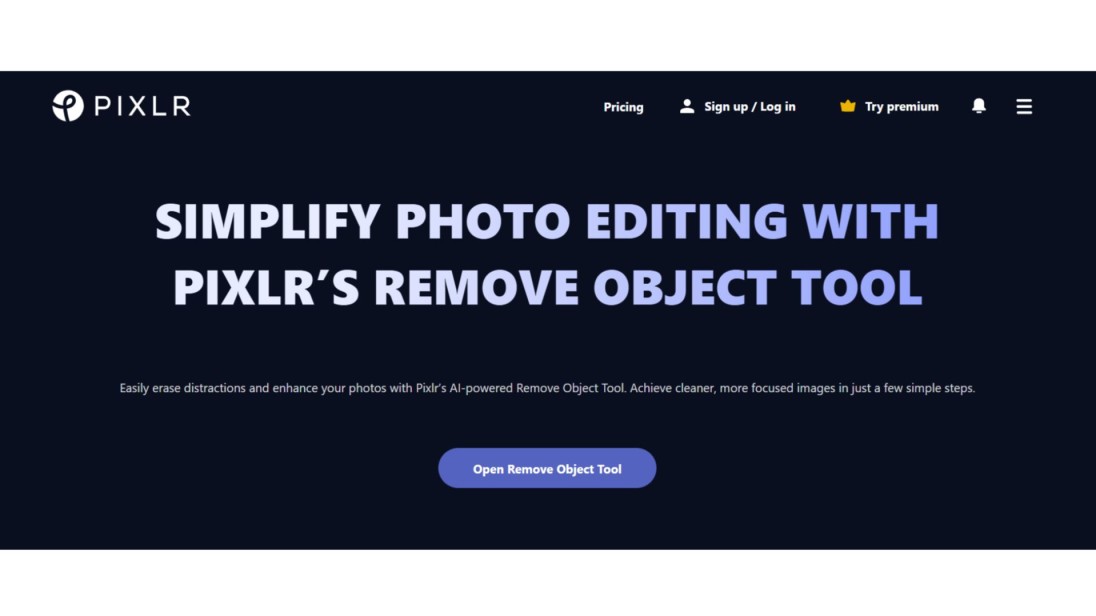
Pixlr bundles object removal with cropping, filters, and color correction in one browser-based editor, so it's handy if you want to finish the whole edit in one place rather than bouncing between tools.
- Best for: people who want removal and general editing in a single browser tab
- Honest trade-off: the object remover itself is less refined than dedicated tools like Cleanup.pictures
- Free tier: yes, with basic tools included
- Paid plans: premium tiers for extra features
10. Befunky Remove Objects Tool
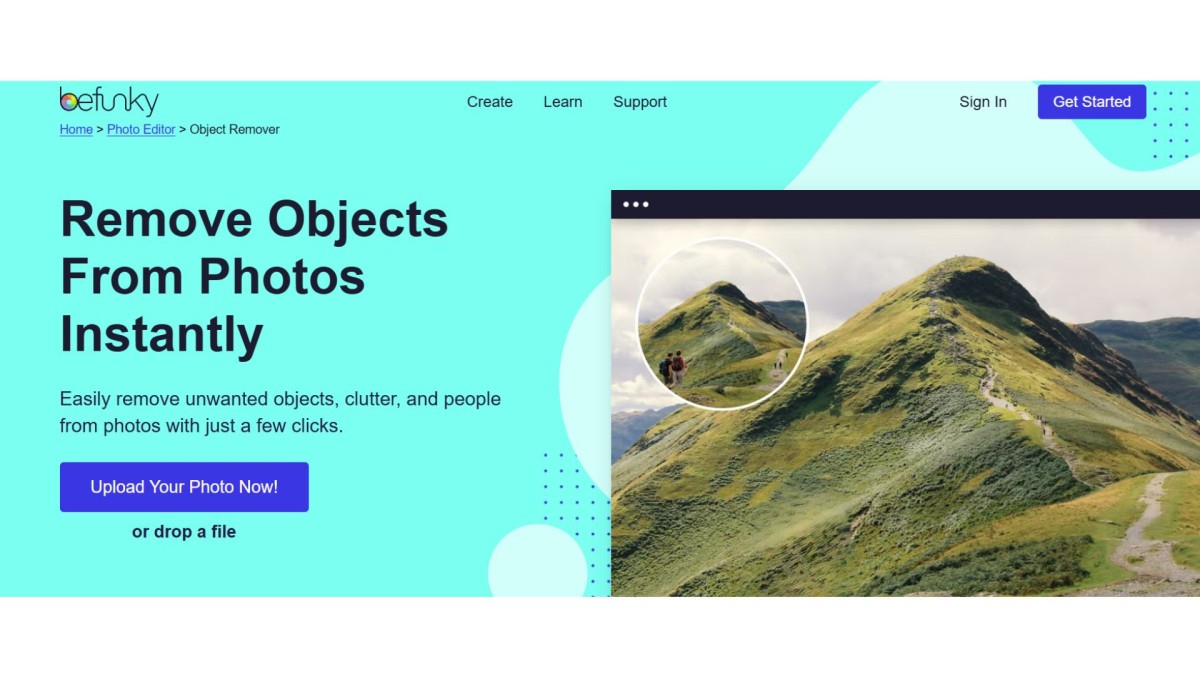
BeFunky's remover blends erased areas into the background reasonably well, and it's bundled with a full design suite, templates, collage tools, artsy filters, so it appeals to anyone who wants editing and light graphic design in one place. The thing to know going in: object removal isn't actually part of the free plan. It's a Plus-tier feature.
- Best for: people who want object removal alongside collage and design tools, not as a standalone need
- Honest trade-off: the free plan only covers basic edits; you need Plus to unlock the remover itself
- Free tier: basic editing only, no object removal
- Paid plans: Plus starts around $6.99/month billed annually
11. Adobe Express Free Object Remover
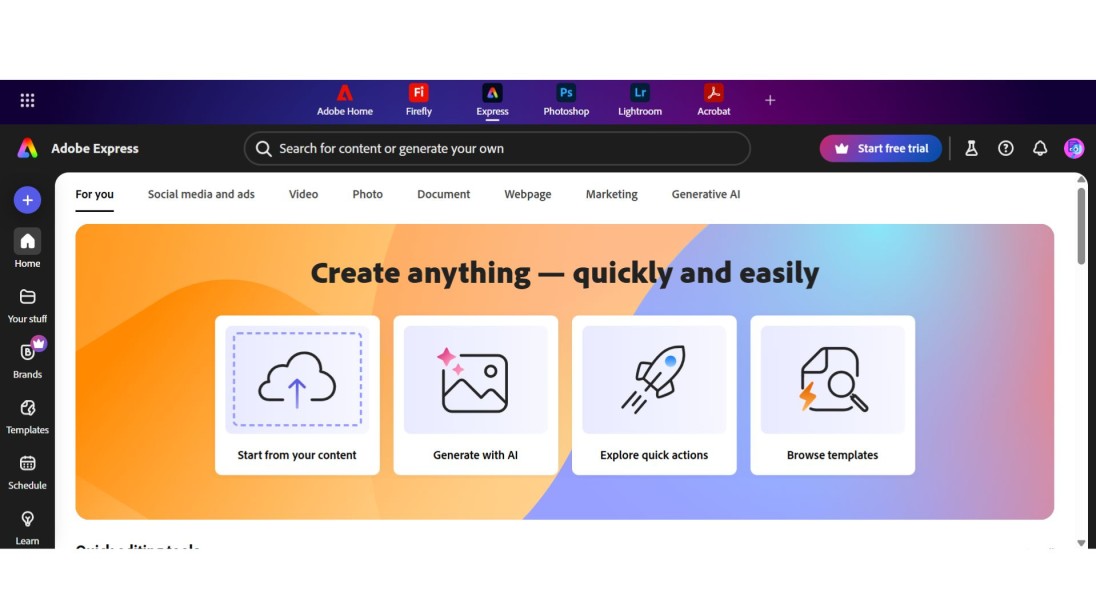
Adobe Express puts Firefly's generative AI behind an approachable, beginner-friendly interface. Removing an object works the same way as the rest of the app's AI features: brush over it, and Generative Fill handles the rest, right in your browser, no separate software.
- Best for: anyone already using Adobe Express for social graphics who wants object removal in the same workflow
- Honest trade-off: the free plan gives you 25 generative credits a month, and Remove Object stops working once they're gone
- Free tier: 25 generative credits/month, no watermark on basic exports
- Paid plans: Premium at $9.99/month bumps you to 250 credits
12. PhotoRoom Object Eraser
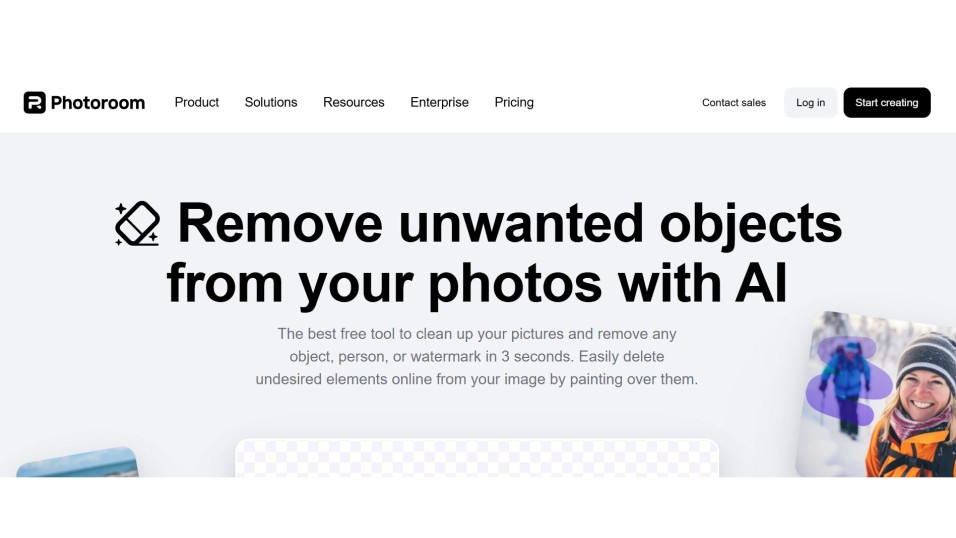
PhotoRoom is built for sellers. Its object remover pairs with background generation and marketplace templates, so you can clean up a product shot and make it listing-ready in one pass.
- Best for: Amazon, Etsy, and Shopify sellers
- Honest trade-off: the free plan adds a watermark and export limits
- Free tier: basic removal, watermarked
- Paid plans: from $4.99/month
13. Picsart Object Remover
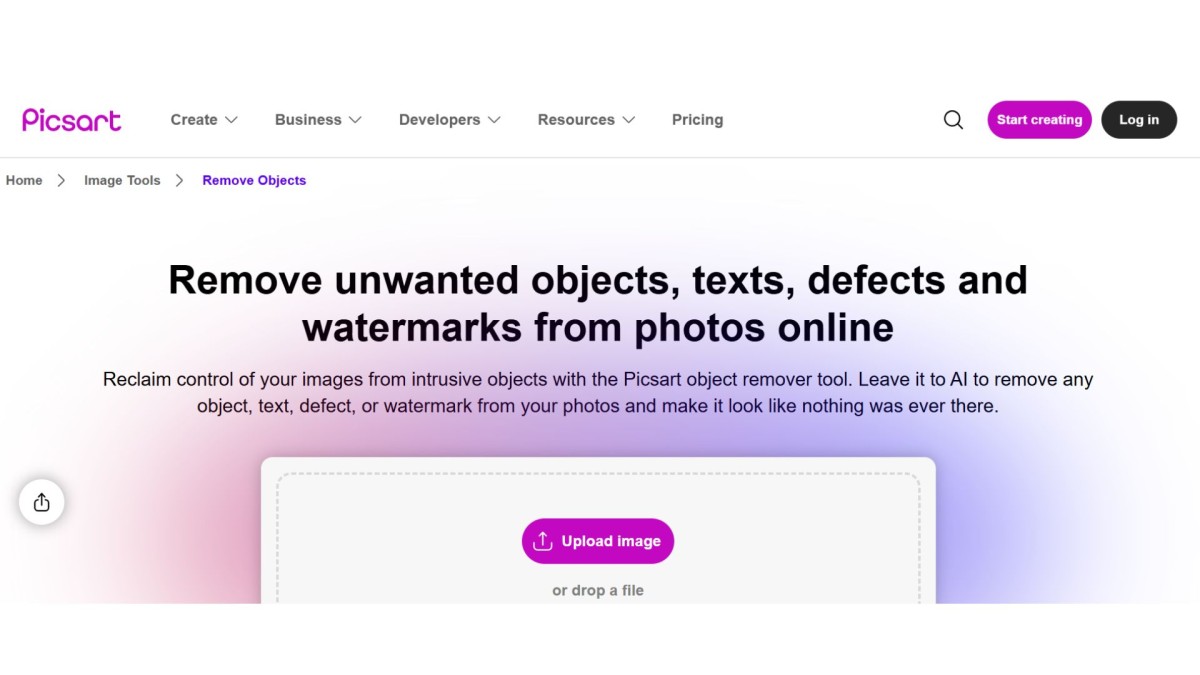
Picsart's Remove tool works alongside its full editing suite, effects, stickers, background swaps, so it suits creators who want object removal and design tools in one app.
- Best for: content creators who want removal plus filters and effects
- Honest trade-off: the free version has ads and a watermark on export
- Free tier: yes, with ads and watermark
- Paid plans: $11.99/month for Premium
14. Canva Magic Eraser

If you're already designing in Canva, the Magic Eraser saves you a round trip: no exporting, editing elsewhere, and re-importing. It's solid for removing watermarks from stock photos or cleaning up small distractions mid-design. The catch is it's locked behind Canva Pro, so it's not a standalone free option.
- Best for: Canva users who want removal baked into their existing workflow
- Honest trade-off: Pro-only, not available on the free plan
- Free tier: none
- Paid plans: included with Canva Pro
15. PicWish

PicWish is a straightforward no-signup web tool: upload, brush over what you want gone, click remove. It also has an auto-detect mode for text and watermarks specifically, which is a nice shortcut if that's mostly what you're clearing out.
- Best for: quick free removals without creating an account
- Honest trade-off: manual brush precision matters more here than on some AI-heavier tools
- Free tier: unlimited
- Paid plans: optional upgrades for extra features
16. Pixelcut Magic Eraser

Pixelcut is built with online sellers in mind. Its object remover pairs naturally with its other product-photography tools, so if you're already using Pixelcut for backgrounds or resizing, the object remover slots right in without switching apps.
- Best for: e-commerce sellers who want removal alongside other product-photo tools
- Honest trade-off: less suited to casual, non-product photos
- Free tier: unlimited
- Paid plans: available for higher-volume or advanced features
17. AirBrush

AirBrush is built for selfie editing first, but its Remove tool handles background distractions and small marks well. It's not going to out-muscle TouchRetouch on a busy street photo, but for a quick portrait touch-up before posting, it's fast and the blending looks natural.
- Best for: cleaning up selfies and portraits before sharing
- Honest trade-off: not built for large or complex objects
- Free tier: basic tools included
- Paid plans: VIP tier from $6.99/month
What about the tools already on your phone?
You don't always need a separate app. If you're on an iPhone with iOS 18 or later, including the iPhone 17 lineup, the Photos app has a built-in Clean Up tool that removes small distractions directly, no upload, no third-party server. It's genuinely convenient, though it's limited to smaller objects; it doesn't handle large removals as reliably as a dedicated tool.
Samsung Galaxy phones from 2024 onward have a similar on-device object eraser built into the default photo editor, and because it runs locally, nothing leaves your phone.
Common mistakes AI object removal still makes
AI removal is fast, but it isn't magic. When we ran test images through several tools, the same problems kept showing up:
- Soft, blurry patches where a busy texture used to be
- Ghost outlines, a faint trace of the object that's supposed to be gone
- Repeating patterns, especially on brick, tile, or fabric
- Warped lines, where a straight edge like a horizon or door frame bends slightly after the fill
Plain backgrounds like sky, sand, and solid walls almost never have this problem. Complex ones do. If you're editing something for print or a client, zoom in to 100% before you call it done. Artifacts that are invisible at thumbnail size get obvious fast at full resolution.
Final Thoughts
Ten years ago, this was a Photoshop-only job. Now it's a brush stroke and a few seconds, whether you're cleaning up a product photo or getting a stranger out of your vacation shot. Start with a free browser tool for anything simple, and save Photoshop for the scenes AI still can't handle cleanly.
FAQs
How do I remove an unwanted object from a picture for free?
Upload the photo to a free browser tool like Zoviz or Cleanup.pictures, brush over the object, and let the AI fill the space. No account or download required for either.
What's the best free app to remove objects from photos?
For browser use, Zoviz and Cleanup.pictures are both genuinely free with no watermark. For mobile, Snapseed is completely free, though it's manual rather than AI-driven.
Can I remove objects from photos on an iPhone without downloading an app?
Yes, if you have iOS 18 or later. Open the photo in the Photos app and use the built-in Clean Up tool. It works well on small distractions but isn't built for large removals.
Is AI object removal as good as using Photoshop?
For simple backgrounds, yes, and it's much faster. For complex scenes with reflections, patterns, or overlapping objects, Photoshop's Generative Remove and manual tools still give you more control.
Why does my edited photo look blurry or fake after removing an object?
The AI is guessing what belongs in that space based on nearby pixels. On plain backgrounds it guesses well. On busy textures like water, fabric, or crowds, it can leave soft patches or repeating patterns. Try a smaller brush and remove the object in smaller passes.
Can these tools remove people from photos too?
Yes. Most of the tools on this list, including Zoviz, Cleanup.pictures, PhotoRoom, and Pixelcut, handle people the same way they handle objects: brush over them and let the AI fill the space.
독점 뉴스레터 받기
최신 소식을 이메일로 바로 받아보려면 지금 구독하세요. 놓치지 마세요!
회원님을 위한 추천


Zoviz 로고 메이커를 사용해보세요
브랜드 이름을 입력하면 몇 초 만에 로고 옵션을 받을 수 있습니다.


